Steps to Implement a Guest Checkout Flow
Written By Luke Wakefield
Last updated 6 months ago
Pre-Requisites
You have Installed the eCommerce Module
Introduction
The Siteglide Ecommerce Module makes it easy to set up a secure and reliable Shopping Cart and Checkout flow. As usual, you can customise your layouts at every step.
In this tutorial, we will show you how to create the simplest Cart and Checkout flow- the Guest Checkout. Users can buy Products without having to sign in, but their details are stored in the CRM so the Site Owner can send them their Products.
Step 1) Set eCommerce Currency Settings
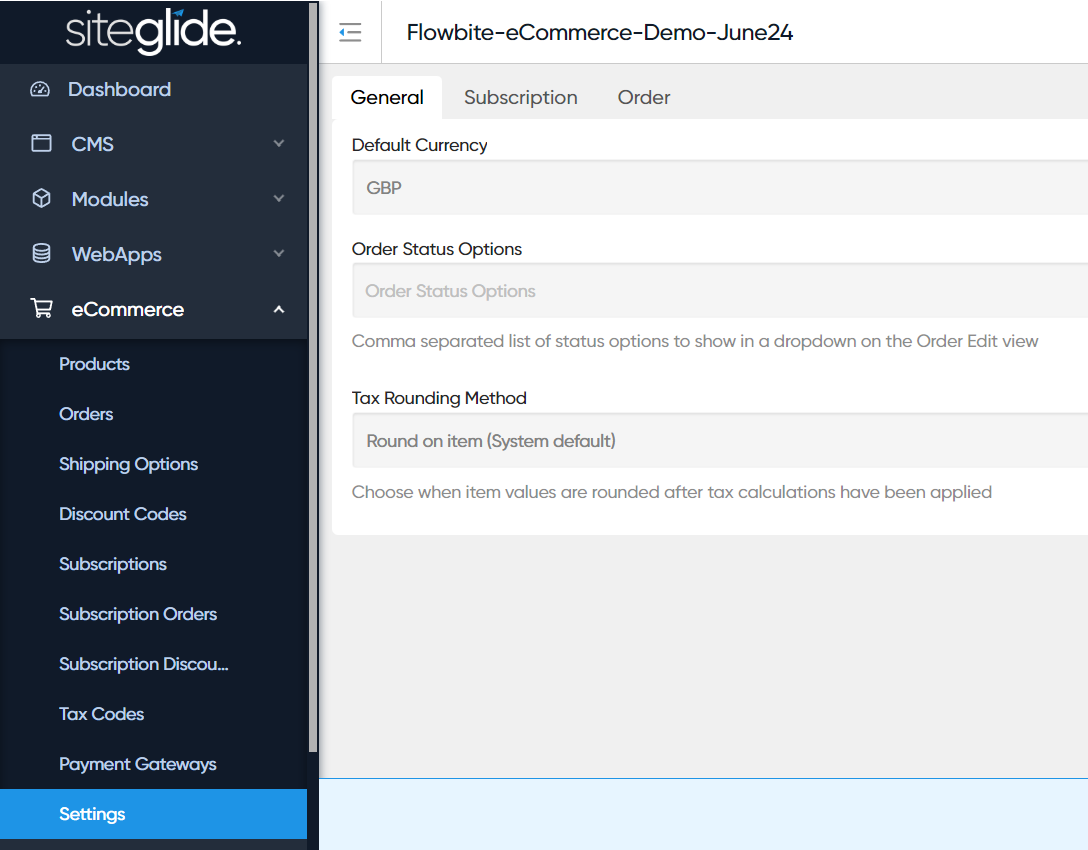
In eCommerce/Settings, select the desired default currency for your Site:
If you forget this step
If you visit the site before you do this (and the eCommerce module is installed), you may find your current user session is set on the old default currency which is probably USD.
Don’t worry! This won’t affect new users and is easily fixed.
You should be able to add a Currency Changer to change the currency for your current session (and then remove it if needed), or delete your cookies and local storage in your browser; this will reset the session- and then the new default currency will be used.
Step 2) Create Products
In eCommerce / Products, create at least one product with a name and a price:
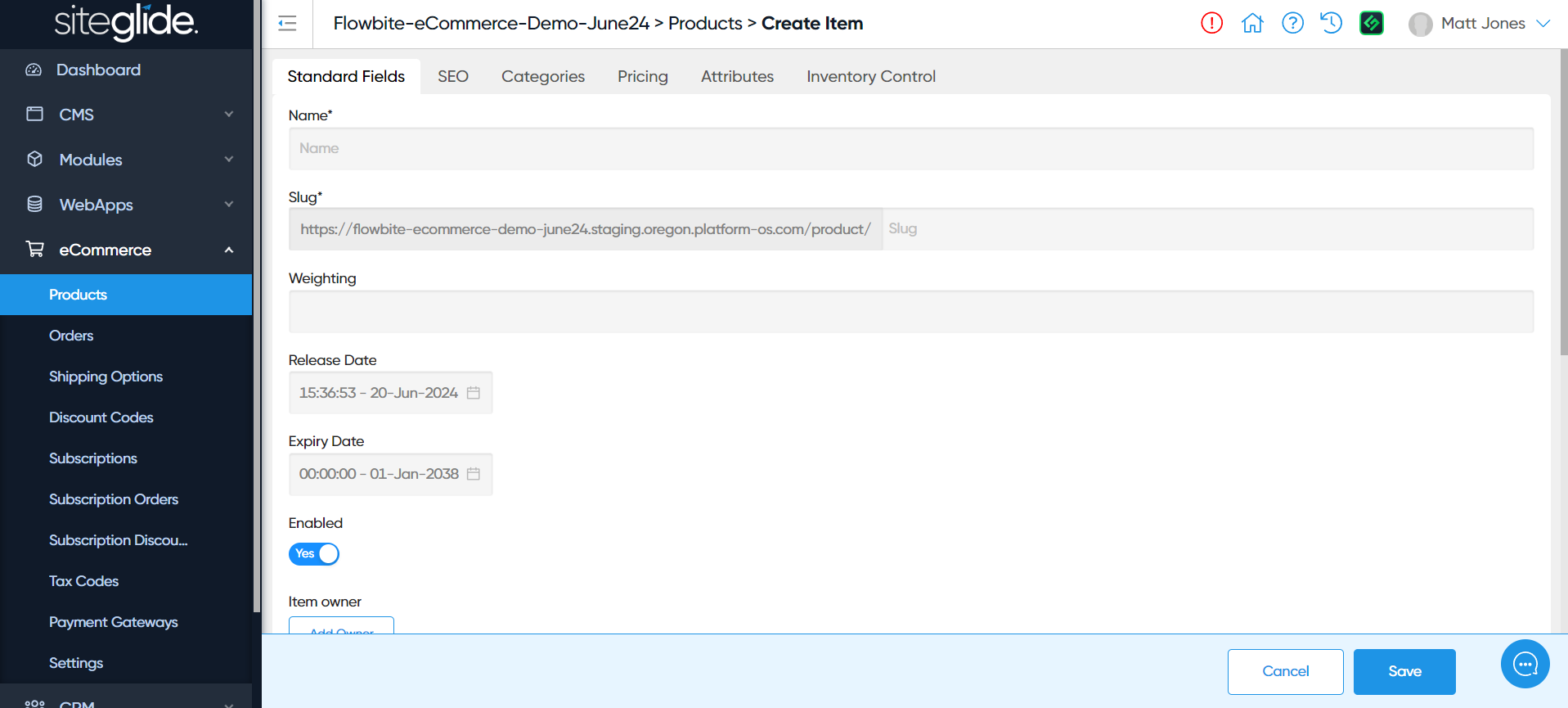
Check the "Pricing" tab to add a chargeable price.
Chargeable price is the real price that will be charged for a product by the back-end. It can be modified by tax codes and discounts. Display price can be used to display an old price or a recommended retail price- it’s visual only and optional. You can optionally set a price in multiple currencies, so that if the currency is changed by a Currency Changer , it will use the correct one.
There are a few other fields which will control product visibility, but they will default to a value which will not hide the product:
enabled must be set to true
release date must be set to a date in the past
expiry date must be set to a date in the future
inventory type must be set to either “none”, or positive inventory must be present
Step 3) Add a Product List to a Page
Users will need to see your products in order to access their Product Detail Pages, or add to their Carts directly.
You can create either an ordinary page or a Studio page to serve the product list view role.
If using an ordinary page, you can use the following code to add a Product List view with the default layout:
{%- include 'ecommerce/products', layout: 'default', per_page: '20', show_pagination: 'true' -%}🧑🎨 Studio has out-of-the-box Product List designs ready as dynamic layouts. We recommend starting from one of these and modifying the code to suit your theme.
If you’re using a Studio page, you can either:
Add the code above inside a static section
Add a dynamic section from the product list view category - that allows you to use a UI to achieve the same thing without writing the code above. A code layout for the product list view is still needed, but you’ll be using an out of the box one.
Learn more about working with product list layouts here: List Layouts
Step 4) Select a Product Detail Layout
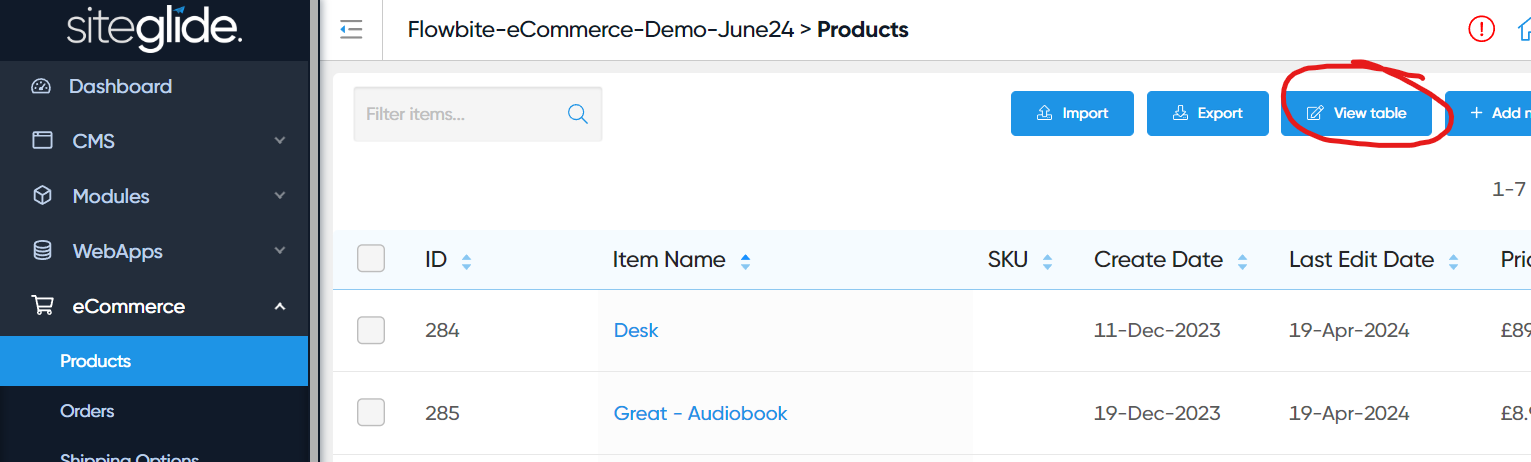
To set a Detail Layout, start at eCommerce / Products and click the "View Table" button:
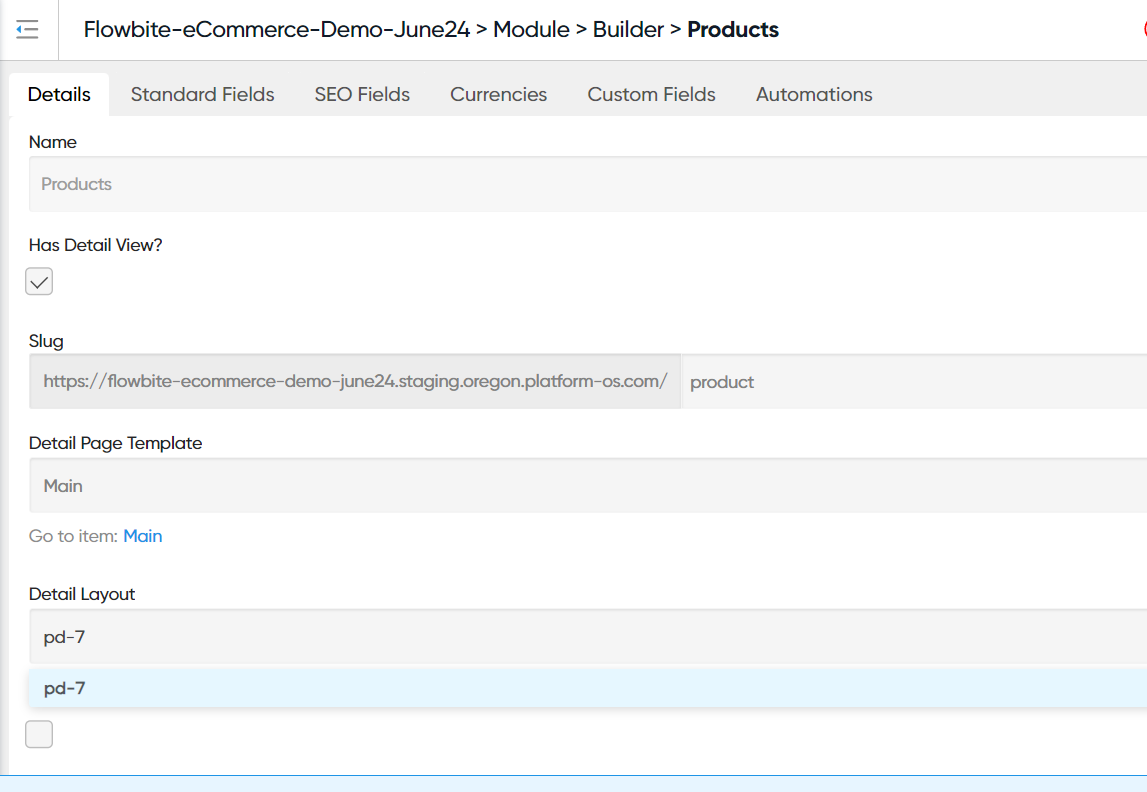
Select the Detail Page Template and Layout:
🧑🎨 Studio has out-of-the-box Product Detail designs ready as dynamic layouts. We recommend starting from one of these and modifying the code to suit your theme.
If you choose a Studio Page Template above, you will get the option to create a Studio product detail page via the Studio tab. As well as adding in a dynamic section for the main part of the detail page, you can also select static Studio sections and map the data to the product via a datasource. This is much more flexible than the older approach of using a single detail layout alone.
Step 5) Implement an Add to Cart Button on Your Detail View
…and Optionally on your List View!
Make sure your Product Detail pages have an add to Cart Button in their layout’s item.liquid file.
Learn more about Product Detail pages here.
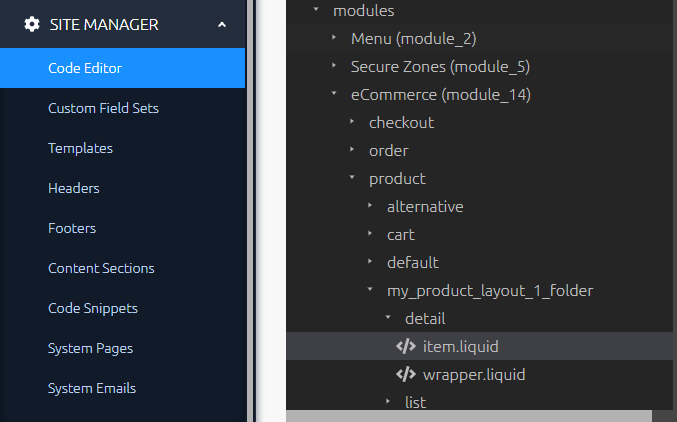
This ecommerce/cart_add liquid include tag will add the "Add to Cart" Button. This needs to be in the item.liquid file to work, because this will have access to the correct data for this Product. To keep the example simple, we’ve also included the minimum required code for the wrapper.liquid file, which simply includes the item.liquid file once in this case.
{%- include 'modules/siteglide_ecommerce/ecommerce/get/get_products', item_layout: 'item' -%}{% include 'ecommerce/cart_add', component_layout: 'default' -%}Layouts control how the add to cart button looks, and allow you to add callback functions: eCommerce- Custom Callback function for successful Add to Cart In our example, we’ve used the basic out of the box default example. To add a custom Cart Add layout, see the Cart and Checkout Folder Structure for the correct directory and use the component_layout parameter to reference the name of your file. e.g. if you created a file at marketplace_builder/views/partials/layouts/modules/module_14/components/add_to_cart_button/custom_layout.liquid, you could use:
{%- include 'modules/siteglide_ecommerce/ecommerce/get/get_products', item_layout: 'item' -%}{% include 'ecommerce/cart_add', component_layout: 'custom_layout' -%}If adding an Add to Cart Button to a List View, make sure that the highest level component in the item.liquid file has the HTML data-attribute added: data-product-group. This allows the module JavaScript to see exactly which product should be added to cart when there are more than one.
{%- include 'modules/siteglide_ecommerce/ecommerce/get/get_products', item_layout: 'item' -%}<div data-product-group>
{% include 'ecommerce/cart_add', component_layout: 'custom_layout' -%}
</div>In a list view, the wrapper.liquid file will only be displayed once, but the item.liquid file will be displayed multiple times, once per product in the list. This is called a loop in programming.
Step 6) Add a Cart Page
Create a new Page for your Cart and use liquid to include the Cart.
{%- include 'ecommerce/cart', layout: 'default', remove_default_css: 'true' -%}Note- the Cart does not need to be on it’s own page (you can have it sit in a modal), but this is the easiest place to start. If you are using SiteBuilder, or have already added your own CSS for the Cart, we recommend setting remove_default_css: 'true' .
Use the layout parameter to select the folder which contains the wrapper.liquid and the item.liquid file you would like to use for your layout. For now, you can use the "cart" layout which is included in the eCommerce Module.
Learn more about Cart Layouts here
🧑🎨 Studio has an out-of-the-box Cart design ready to go. We recommend starting from that and modifying it.
Step 7) Create a Form for your Checkout Page
This will store a paying User against the CRM and submit their payment details securely via your chosen Payment Gateway.
You can add a form by navigating to CMS/Forms in the left hand Menu and then clicking the "+ Add New Form" button in the top right of the page. Learn more about forms here: About Forms.
You will need to add the following information when creating your form:
Form Name: e.g. Checkout Form
Redirect URL - This is the relative URL you want a user to be redirected to after submission of payment details e.g. a confirmation page.
In the payments tab, toggle "Use as a payment form?" on
Payment Form Type will appear under the payments tab. Select "Standard Checkout".

Save your changes.
If you are using the PayPal Payment Gateway, you will need to carry out an additional step.
Step 8) Create a new Page for your Checkout Form
Step 9) Add the Checkout form to your Checkout Page
Include the Checkout Layout in your page - use the ID from the CMS / Forms list as the form_id parameter. If you use the Toolbox to add this code, you can lookup your form by name.
{%- include 'ecommerce/checkout', form_id: '1', layout: 'default' -%}The layout parameter should refer to the folder which contains your form layout file. This file exists here:
layouts/forms/form_1/default.liquid
For now, you can use the "default" layout that is included with the eCommerce module.
Studio has an out-of-the-box Checkout Form dynamic section ready for you to use or modify.
If the page is visited while the user has an empty cart, an alternative "empty" layout will show. The default form layout will automatically add an empty layout at the path:
layouts/modules/module_14/checkout/default/empty.liquid
If you create a custom layout, you should also create an empty.liquid file, renaming the default folder in the filepath above with the name of your form layout.
Step 10) Test your eCommerce flow.
Remember, you will need to use the test cards from your chosen Payment Gateway. Find more information here
Users will be added to the CRM in Admin.
You can see the records of transactions in Admin by navigating to the Orders list or finding the User in the CRM.
Next Steps
You've now completed the simplest version of the Cart and Checkout Flow, however there are plenty of improvements you can still make and lots more to learn.
Orders
After a User has submitted your Checkout form, an order will be automatically generated. You can see a list of orders under ECOMMERCE/Orders in the left-hand menu.
Click on the name of the order for more information.
It is more difficult to give "Guest" Users access to their past orders, as you would need to verify that the order belongs to them, potentially manually by asking them to provide some information.
You can add Secure Zones to this flow in the next article, allowing you to easily show the User their past orders when logged in:
Steps to Add Secure Zones and User Orders View to your Checkout Flow
A note on Inventory
As a user buys a Product, the Inventory decreases accordingly.
A User cannot buy a Product if its Inventory is 0, but you can also hide Products that have sold out from the Product List Views.
Was this helpful?
Still need help? Ask the team