Migrating from <2.0.0 themes to libraries
In the 2.0.0 update, themes were renamed to libraries, and the new libraries were given powerful new features. It's actually quite easy to upgrade, but you'll need Siteglide CLI.
Written By Matt Jones
Last updated 4 months ago
Siteglide support can help you update a <2.0.0 theme to a library, please reach out if that’s helpful.
Installing a published old-structure theme from “New Library” modal will convert it to the new library structure. If your theme is published, you can install it yourself to convert it and re-publish it as a library.
Pre-requisites
An existing theme which was created before Studio version 2.0.0
Familiarity with CLI Site Setup and a CLI connection to the site where your old theme is
Before you can use the new library, you’ll need to upgrade to Studio version >= 2.0.0, but it may be smart to follow this migration process before updating. That way in the unlikely event that the update does cause any issues with your old theme (this shouldn’t happen as the new Studio version should be backwards compatible with old themes), you’ll be able to switch to your new library immediately.
Example Structure
Old
assets
theme
<theme-name>
example.jpg
views
partials
theme
<theme-name>
sections/
shells/
snippets/
config.liquid
head.liquid
scripts.liquid
layouts
modules
module_3
theme
<theme-name>
<layout-name>
wrapper.liquid
item.liquid
New
assets
library
<library-name>
example.jpg
views
partials
library
<library-name>
sections/
shells/
snippets/
config.liquid
head.liquid
scripts.liquid
themes
<theme-name>
config.liquid
custom_css.liquid
layouts
modules
module_3
library
<library-name>
<layout-name>
wrapper.liquid
Item.liquid
Steps
Make sure your site has been “pulled” using CLI
Turn on sync to track the new files you create
Create a library folder in assets (if there is not one already), then copy your named theme assets folder in. This is mainly useful for libraries which will be published, as it defines which assets e.g. JS will be copied with the library.
Create a library folder in views/partials (if there is not one already) and copy in the named folder you already have at
views/partials/theme/<theme-name>. Then you should haveviews/partials/library/<library-name>Easiest thing is to make your <library-name> exactly the same as your <theme-name> used to be. This will make the migration much easier.
You should still have a sections and snippets folder in the new location
You should still have a shells folder in the new location, if you had one in the old location. The numerical ID (file name) of each shell liquid file should match the numerical ID (file name) of a Page Template.
You should still have a config.liquid, head.liquid and scripts.liquid file
The config file’s metadata can be given:
Required - default_theme: key. At this point, you probably will only have one theme, so if your library is called Example Library, you might add the id
examplehere.optional - a library_version: key which you can set to
1.0.0or similar. If you update this when you update a published library, it helps users know if they have the up to date version on their site.
Create a new
themesfolderCreate a subfolder with the same id you gave your default theme in 4.4.1.1
Create a custom_css.liquid file in this new theme subfolder
Cut and paste the custom_css metadata from your old theme config.liquid file into the new file as normal Liquid content (not metadata).
The custom_css will need tidying up as it moves from being escaped inside the YML format back to unminified CSS. Backslashes will have been used to “escape” some characters so as not to break YML format. After this, working on this file from CLI will become easier in future.
If this starts and ends with double quotes, remove them e.g.
“@layer theme…”Find and replace all \n in the file with a real newline (press shift + enter in the replace box in VSCode)
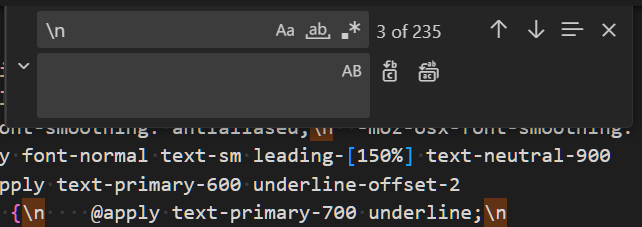
Find and replace all
\”with“Find and replace any \t with tabs or double space
Find any remaining backslashes and manually (or use AI) review them and most likely they can all be deleted
Generally tidy up the tabulation and whitespace in this file (AI may be able to help)
Create a new config.liquid file in the new theme subfolder. This should be given new metadata content:
name - required - String - Human-readable Theme name
type - required - String - must be same as type in the library config.liquid file.
theme_version - optional - String - like the library version. Though themes cannot yet be independently installed from their parent library, this may be added in future, so adding a version helps to keep track.
tailwind OR bootstrap - required - Object - cut and paste this from your library/<library-name>/config.liquid file to your library/<library-name>/themes/<theme-name>/config.liquid file. All styling is now moved to the sub-themes inside library, to allow themes to be swapped in and out.
colour_variants - optional - It’s probably easiest to add this via the UI, after the migration is done
For dynamic sections, for each folder in views/partials/layouts/modules, where there is a theme/<theme-name> folder, copy it to a new library/<library-name> folder.
Only if you have changed your library name as you did this migration, do you need to go in and change the studio_theme key to the new <library-name>
Add a new studio_library: key which matches the <library-name>. This is not yet used, but is useful if we switch to use it in the future.
Switch to use your new library instead of the old theme
On each page template, replace
studio_themekey withstudio_librarybut keep the value the same.
Test - is the frontend and Admin management area using your new library as expected?
If you’re familiar with github, commit to back up your old theme.
Delete your old theme to avoid AI and human confusion.
Was this helpful?
Still need help? Ask the team