Migrate from AWS to OCI
Only relevant for sites on the Legacy AWS shared stacks
Written By Luke Wakefield
Last updated 2 days ago
ALL sites will be migrated from AWS to OCI as the AWS stacks is old technology that is being decommissioned.
If you would like help migrating please reach out via Live Chat.
Since April 2025, new sites have been created on the Oracle+Cloudflare (OCI) stack, with full rollout across Europe, Americas, Asia Pacific, and Staging environments completed by November 2025. Existing AWS sites have continued to run unaffected but it’s important to migrate ASAP to benefit from the latest technology and before AWS is decommissioned.
OCI Benefits
Moving to the Cloudflare-powered OCI stack unlocks features that are available at no additional cost (usage limits apply):
Cloudflare Image Transformations
Resize, optimize, and convert images on the fly at the edge. Cloudflare caches each transformed version after the first request, so repeat visits load faster without recalculating the transformation, and it automatically serves the best format/size for the visitor's device.
Read more: https://www.cloudflare.com/products/images/
Cloudflare Turnstile (available September 2026)
A modern alternative to CAPTCHA that verifies visitors without disrupting their experience. It can run in Managed, Non-Interactive, or Invisible mode, is WCAG 2.2 AA accessible, and only prompts visitors to interact when genuinely necessary.
Read more: https://www.cloudflare.com/products/turnstile/
Preparing to Migrate
It’s important to try and switch the domain as soon after migration as possible to minimise loss of data so please ensure you have Domain Control prior to migration.
Please consider discussing the migration with site owners and potentially offer a maintenance window approach for high traffic/importance sites.
Step 1: Is the Site Fully Delegated Or External?
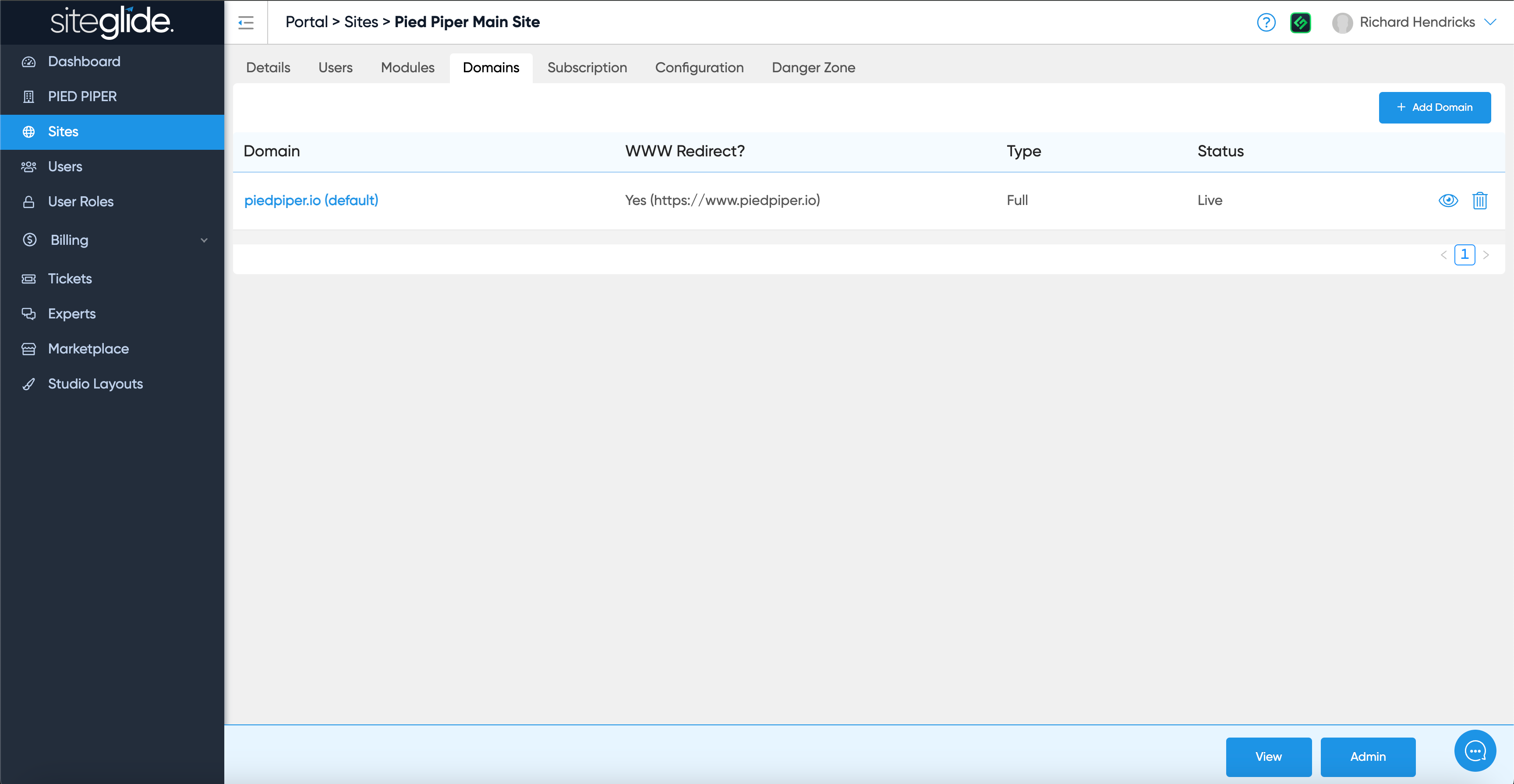
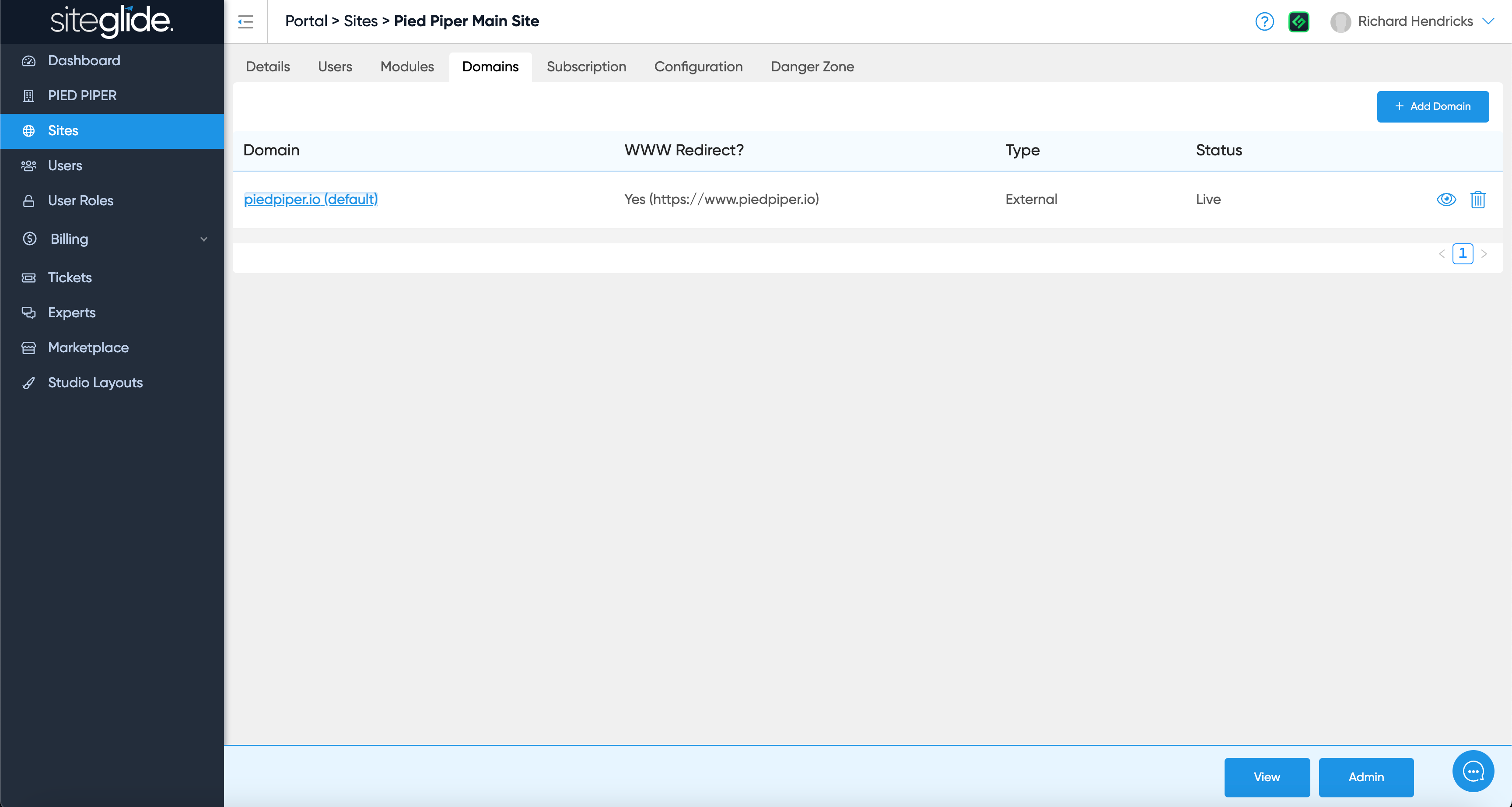
Go to the domains tab and the Type field will say “Full” or “External”:
Step 2: Do I have sufficient Domain Control?
Not sure where the domain is controlled? Use a WhoIS Lookup Tool to get the Nameservers which help locate where the domain is managed and likely who owns the domain if you need to contact the owner to gain access.
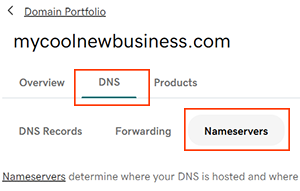
If your domain(s) is Fully Delegated (recommended) then you need to ensure you have login access to the domain control panel itself to be able to edit the Nameservers.
Example: GoDaddy
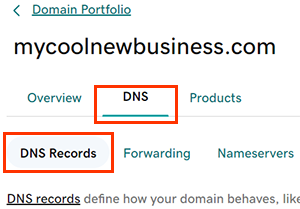
If your domain(s) is External (not recommended) then you need to ensure you have login access to wherever the DNS is managed so that you can update the CNAME DNS records and point the website to the new OCI server.
Example: GoDaddy
How to Migrate to OCI
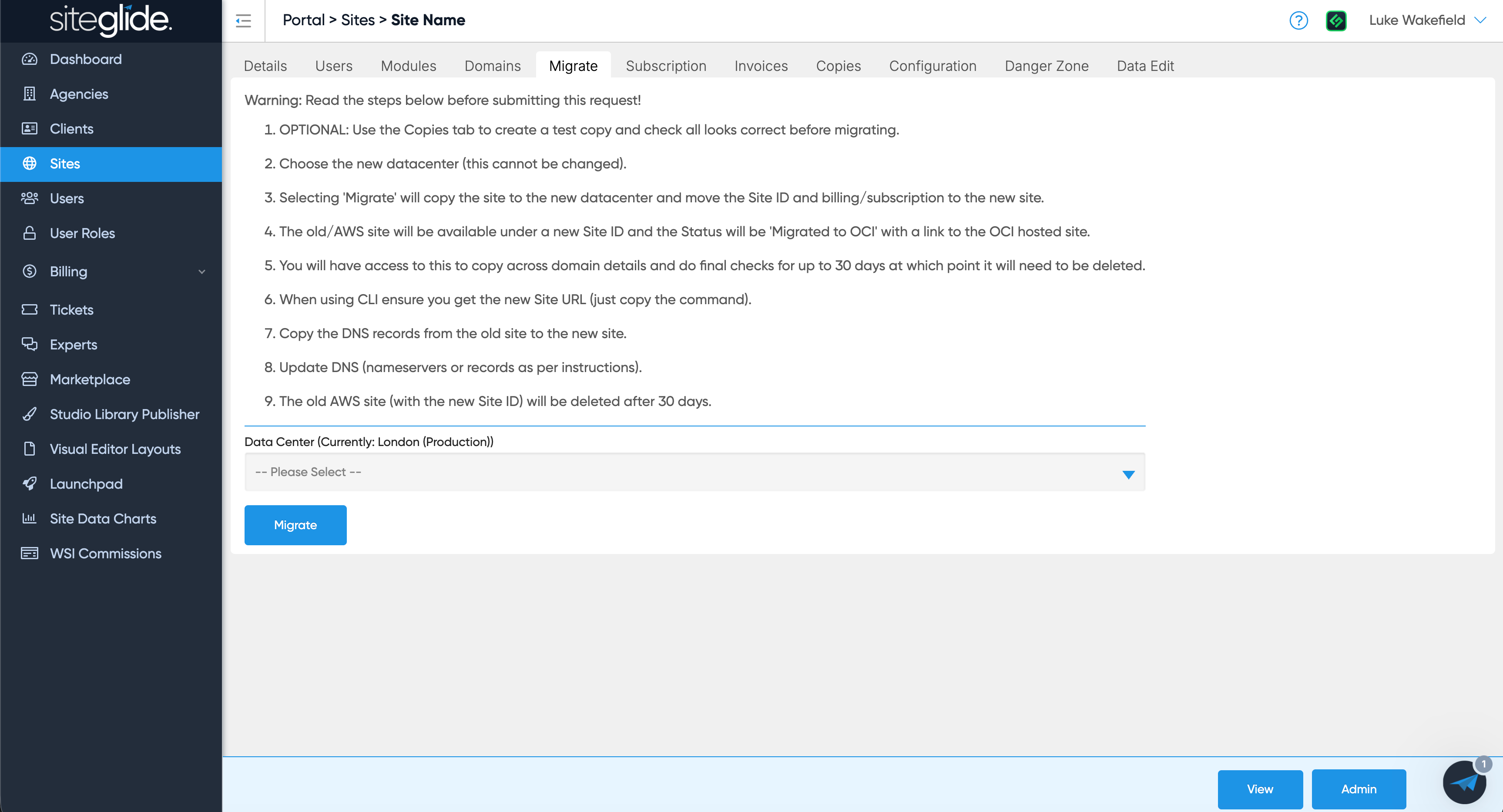
Simply go to Sites in the Siteglide Portal, click through to the site and then click the Migrate tab:
Step 1: Make a test copy of the Site
We strongly recommend making a copy first to avoid issues during Migration
Go to the specific Site page in Portal and in the Copies tab create a new Copy to Staging.
Once done you can view the copy and check everything looks correct. If there is an issue copying the site please get in touch with our team via Live Chat or Discord.
Step 2: Choose your new Datacenter
This cannot be changed after migration, typically it will be the same location as it was on AWS but it should likely be closest to where most of the site visitors would be.
Step 3: Click 'Migrate'
This copies the site to OCI and transfers the Site ID and billing/subscription to the new site.
You will get an email when the new OCI site is ready.
Your old AWS site remains accessible under a new Site ID, marked "Migrated to OCI," with a link through to the new OCI-hosted site.
The old AWS site (under its new Site ID) is automatically deleted after 30 days.
Step 4: Add the Domain to the new OCI Site
We strongly recommend fully delegating the domain and leveraging Cloudflare DNS
Go to Domains, click add Domain and choose Fully Delegated where possible (more information on setting up domains: Introduction to Domains )
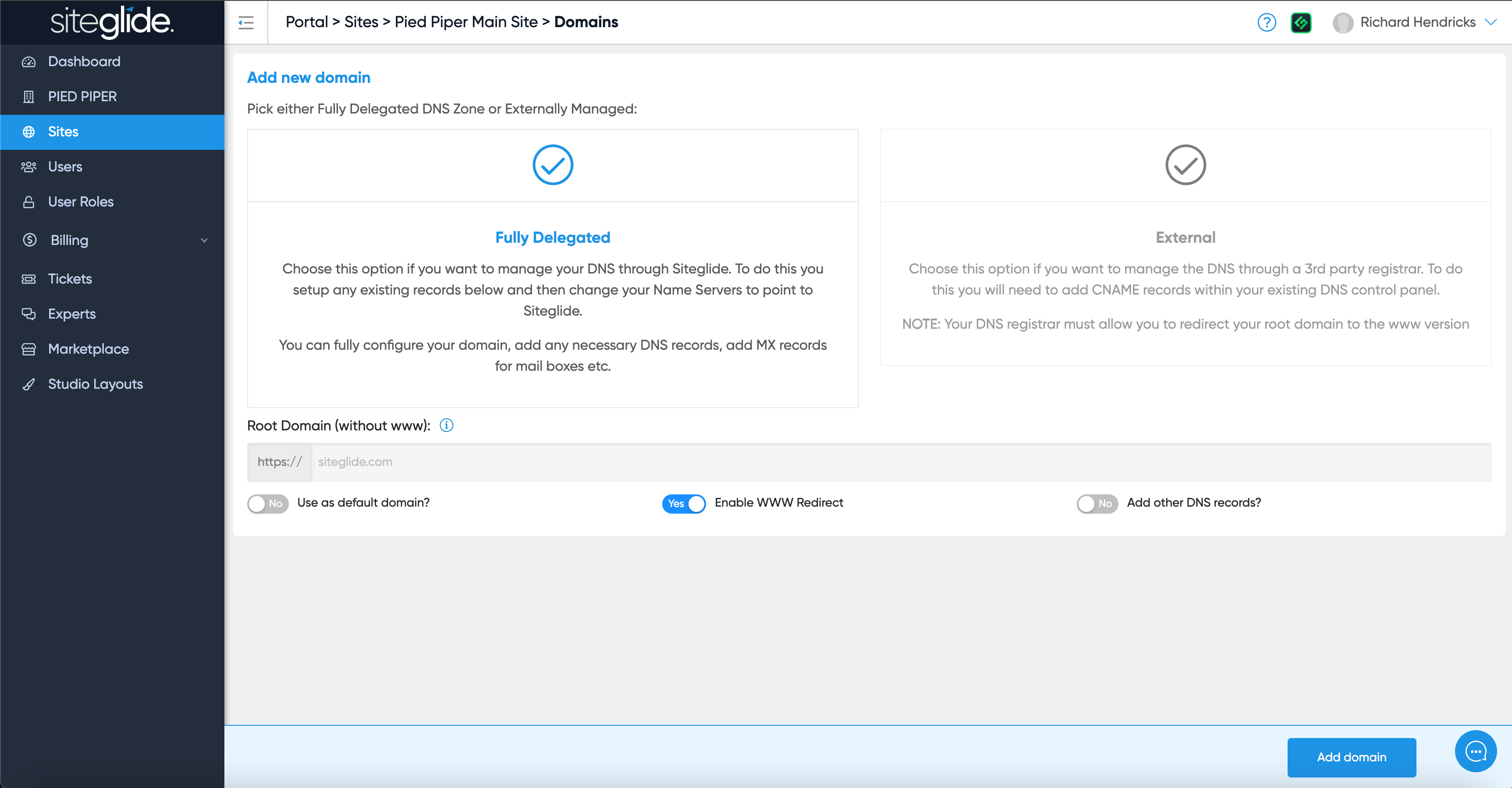
We recommend taking a backup of the DNS records in the old site Domains tab on your machine (e.g. text file)
Copy across the DNS records from the old site Domain tab and complete final checks.
Step 5: Update the Nameservers (or DNS CNAMEs if External)
IF ‘Fully Delegated’ go to your domain control panel and update the Nameservers from the 4 AWS NS records to the 2 new Cloudflare records shown in the domains tab in the new site.
IF ‘External’ go to where your DNS records are managed and add the new CNAME records shown here: Add an External Domain - you can remove the old AWS records.
Step 6: Wait for propagation and run checks
Propagation can take up to 24 hours but will typically switchover within an hour. You can check progress using your preferred tool, we recommend: https://www.whatsmydns.net/#NS/ or https://mxtoolbox.com/DnsLookup.aspx
Step 7: Update any Integrations and ask Siteglide to copy Sendgrid setup (if applicable)
Do ensure you check this as services could stop running including data workflows and email deliverability
If you use Zapier, the Site API, our Workflow Builder or any custom integrations you will need to ensure any references to the old site/domain are updated including any api keys.
If you have Sendgrid configured by us please also reach out via Live Chat (or your Discord team channel if you have one) and ask for us to copy it across.
Template Email for Site/Domain Owner
If you need to notify the Site or Domain Owner of these changes and perhaps require access to the domain (or if they need to make the changes) then this template may be a good starting point.
Subject: Siteglide Server Upgrade
Dear {name},
Your website currently runs on Siteglide servers that use Amazon Web Services (AWS) infrastructure.
In November 2025 Siteglide launched a much improved service that runs on Oracle (OCI) and Cloudflare technologies (See press release). There are various improvements that come with this upgrade and many more to come.
Your website will move to the new OCI server before 30th September 2026, we will manage this free of charge but if we don’t currently have access to your domain (DNS) you will either need to provide it or update the records we provide. It’s important that the domain switchover is done straight after the server migration to get the latest copy of the site data.
What we need from you
Please reply to acknowledge the upgrade and either:
Supply/confirm login details to your domain control panel (recommended)
Book a Zoom call for us to assist you with updating the records
Discuss/agree a time and date to update the records with the new ones we provide
Kind regards,
Was this helpful?
Still need help? Ask the team