Quickstart: Media Downloads
Written By Luke Wakefield
Last updated 21 days ago
Step 1: Install the Media Downloads Module
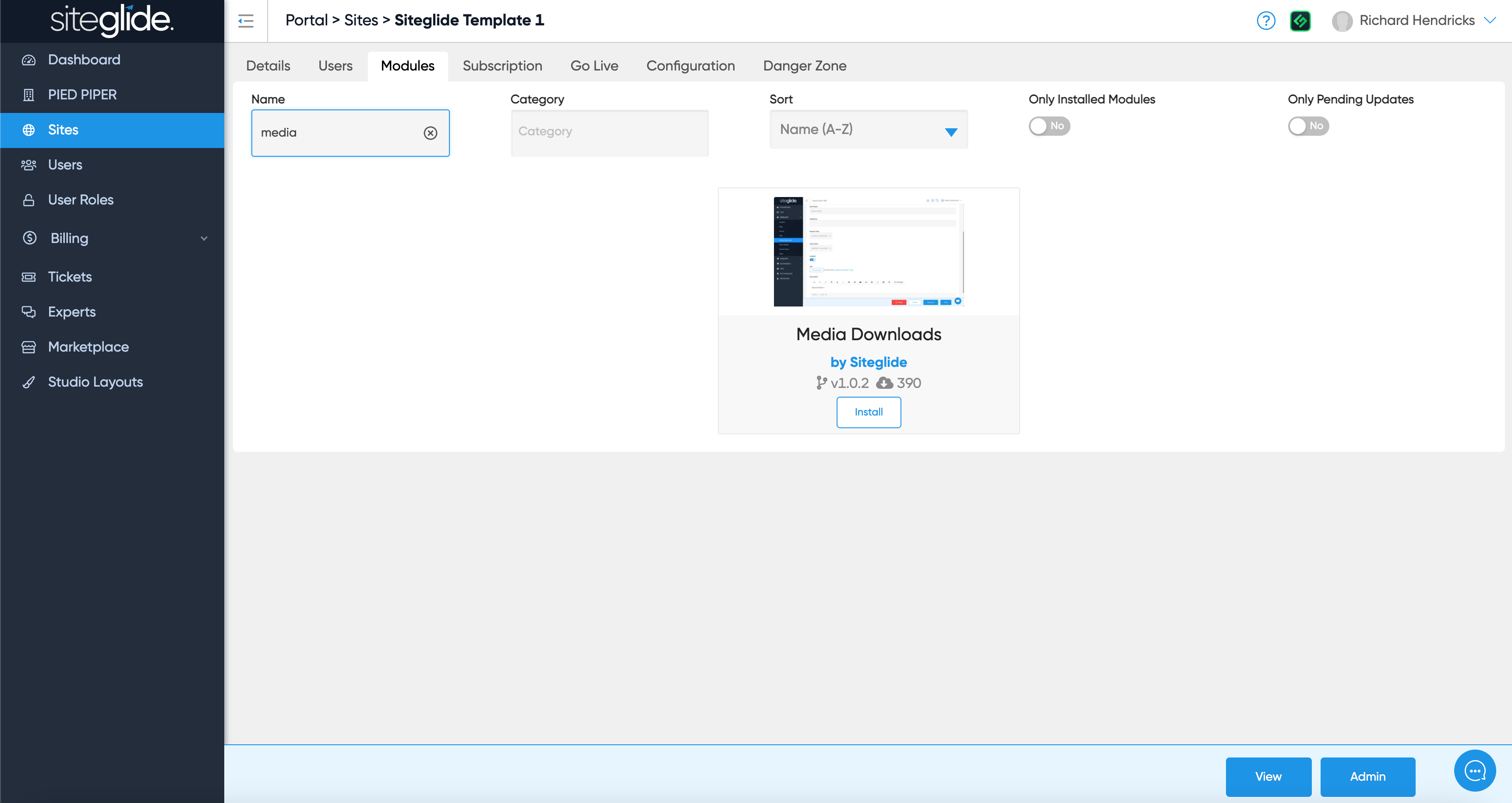
Go to the Modules tab on the Site in Portal and search or find Media Downloads. Then click install:
More on Installing and Managing Modules:
Step 2: Create an Item
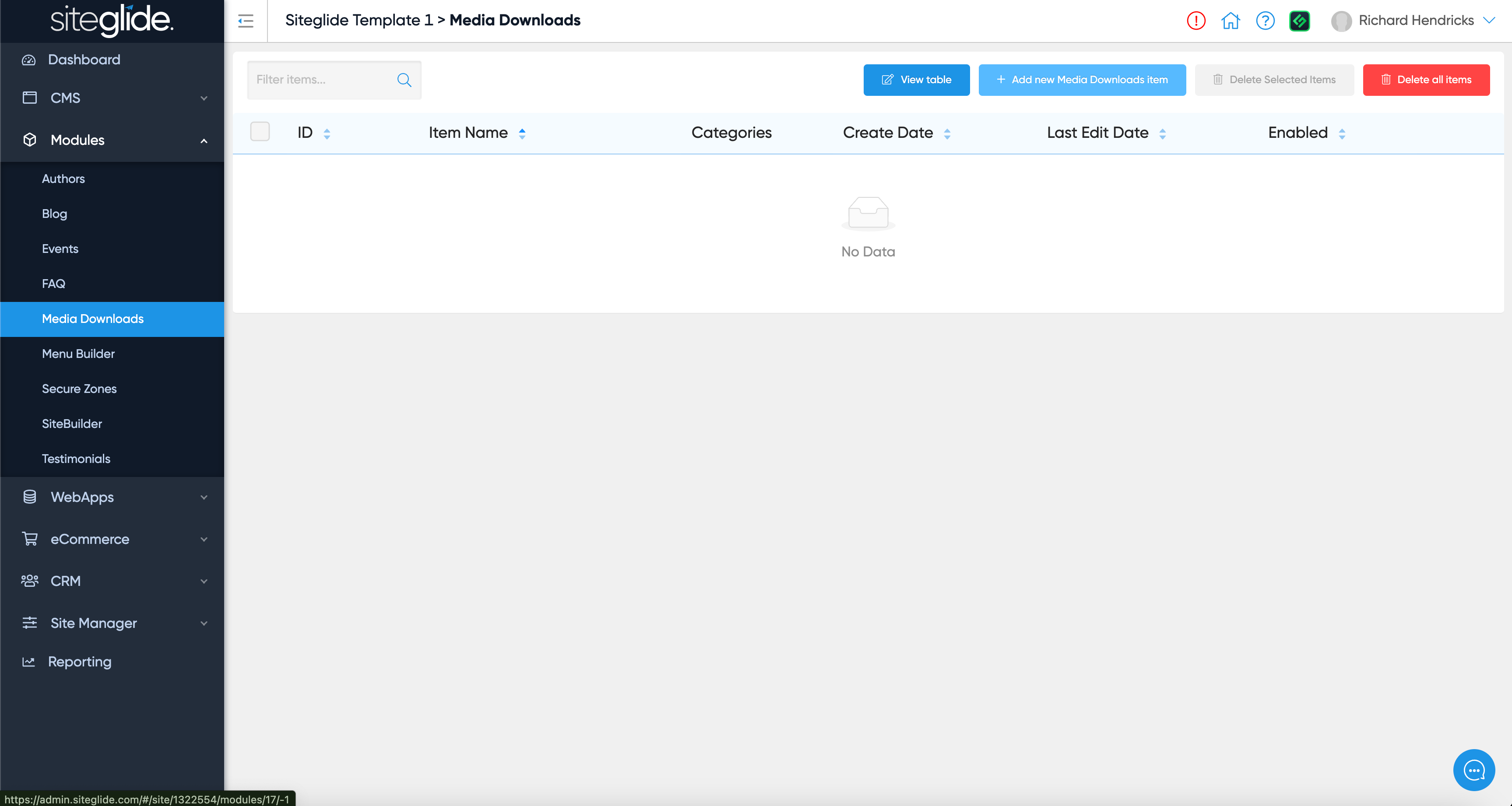
Go to the Module and create a new Item or edit any existing Items. You can also click view table to edit the Module itself:
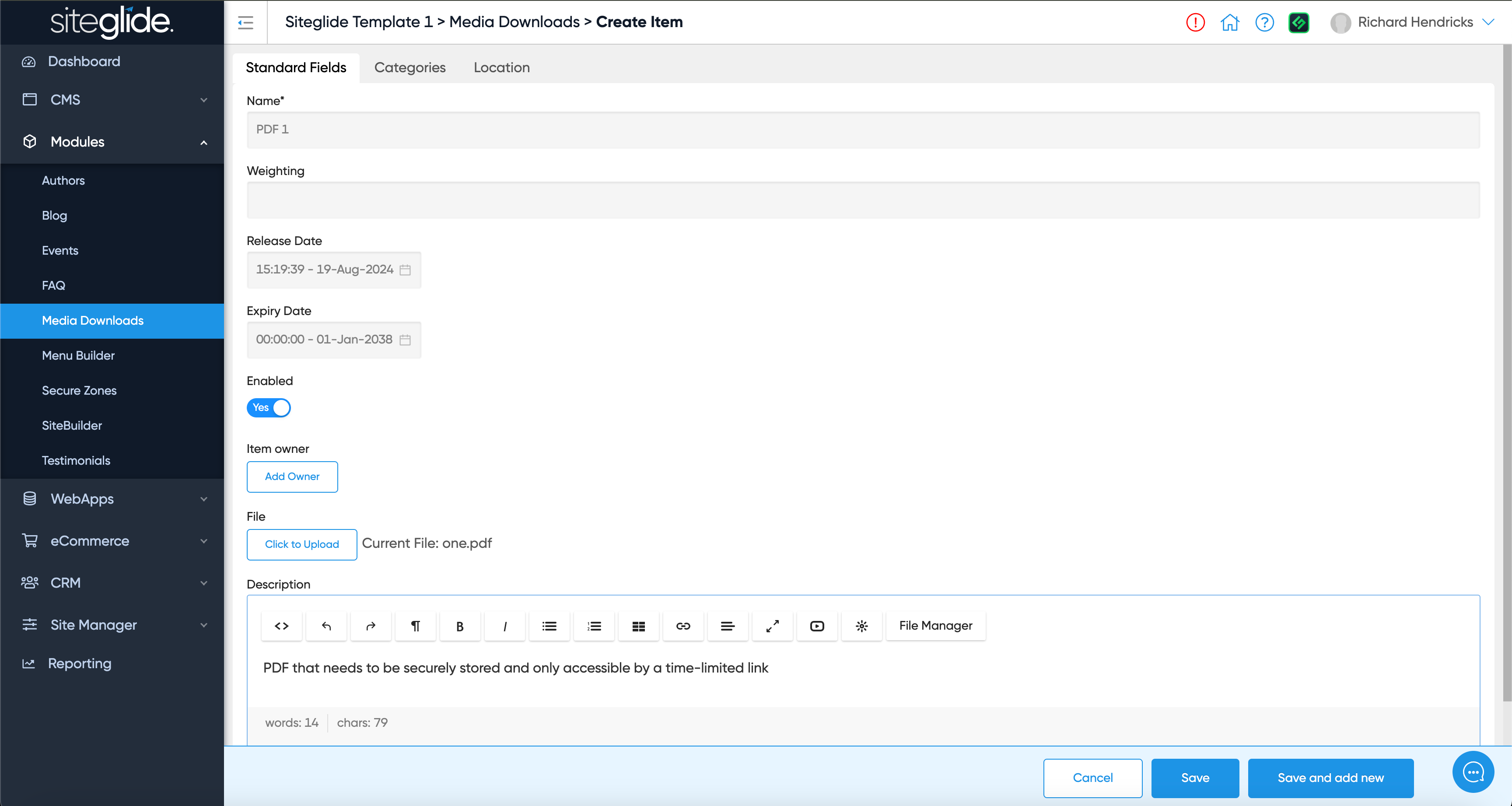
Give the item a name, upload a file (typically PDFs) and give it a description (optional):
Step 3: Output on a Page
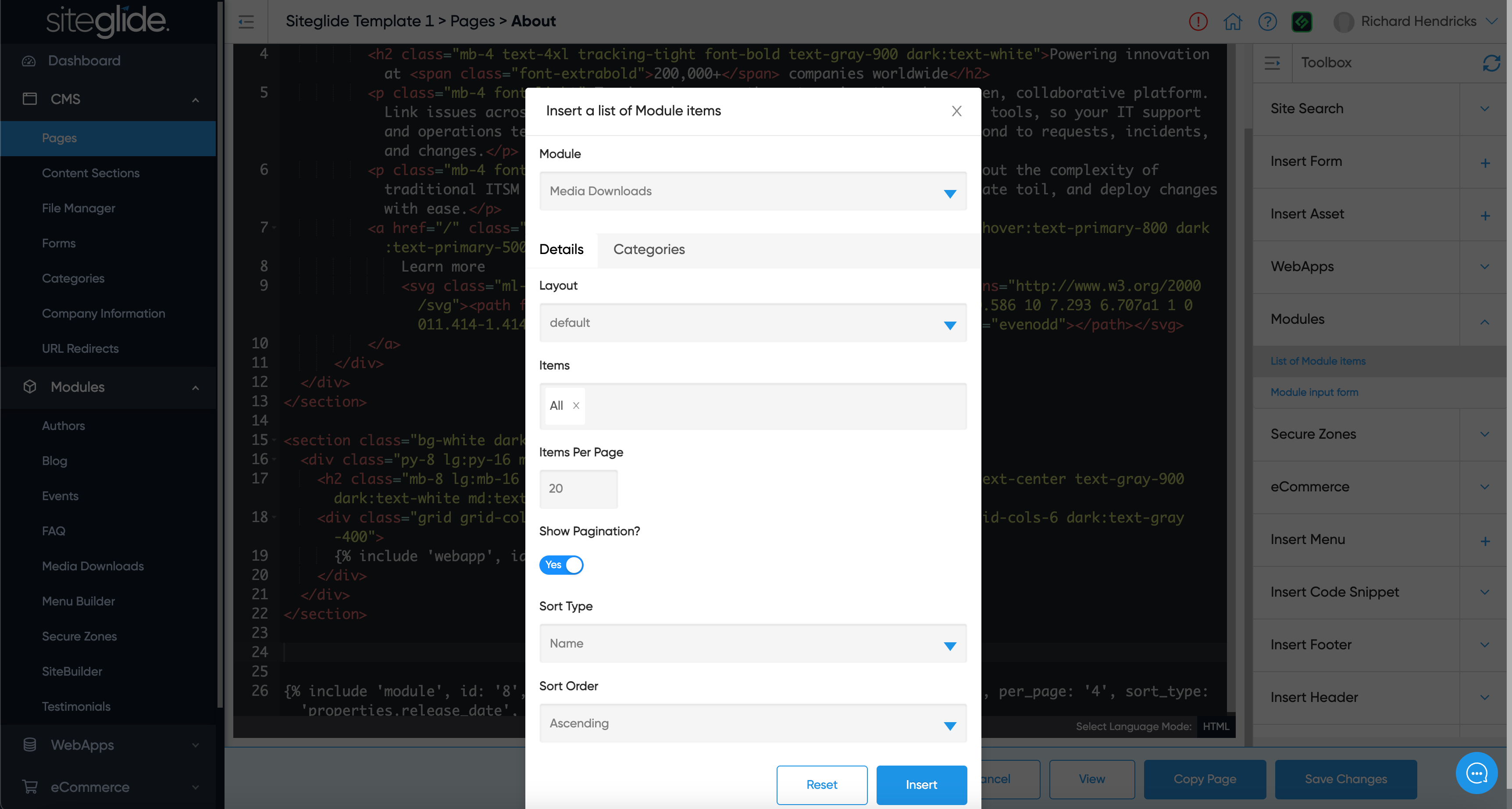
You can output a link to the file on a webpage by using Toolbox:
For full control over the design and functionality you can edit the Layouts:
For a full list of fields available check out our Reference guide:
Was this helpful?
Still need help? Ask the team